Continuous capture
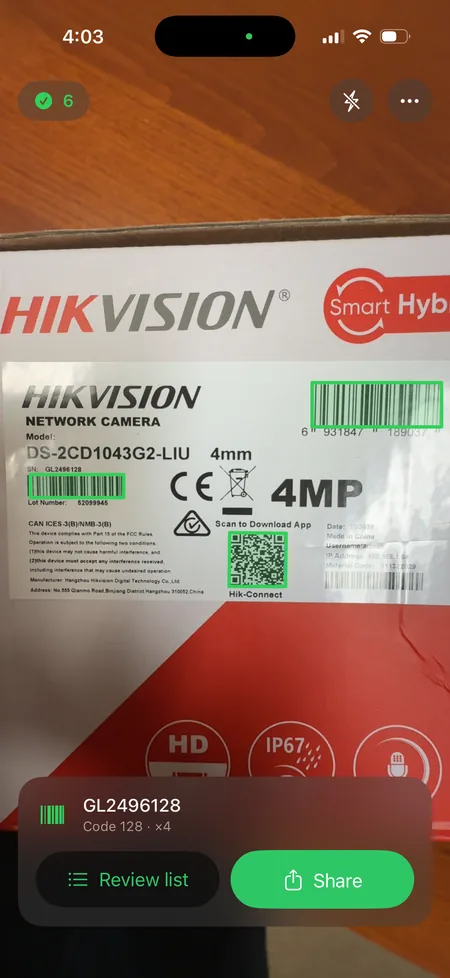
Keep the camera moving. Every readable code in view joins your list.
 Scan List
Barcode scanning, simplified
Scan List captures many barcodes in one session, keeps the list on your device, and exports it as a clean CSV or text file when you are ready.
Designed for the job
Keep the camera moving. Every readable code in view joins your list.
Camera frames are analysed on your iPhone and immediately discarded.
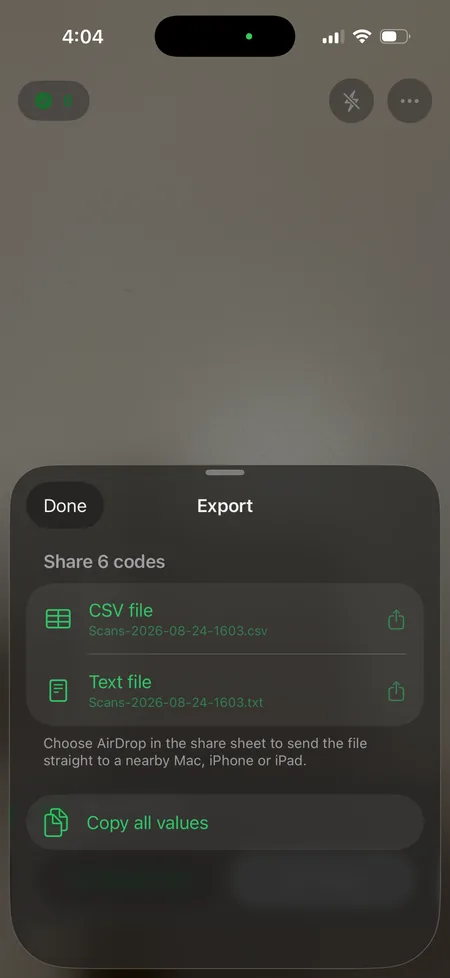
Share a CSV or text file through AirDrop, Mail, Messages, or Files.
What it looks like
Scan List support
Find quick answers for scanning, organising, and sharing your list. If something still is not right, email us and include your iOS version and the steps that led to the problem.
We usually reply within two business days.
Merge duplicates is on by default. Re-scanning the same product increases its quantity instead of adding another row. Turn it off in the scanning options if every read needs its own row.
Open the scanning options and turn on Capture location. iOS asks for permission the first time. A green location badge means a current position will be attached to new scans; grey means the app is still waiting for a fix, and yellow means location is unavailable.
Location capture is off by default. It runs only while the option is on and Scan List is in front, and it never changes scans you already made.
CSV includes the value, barcode type, quantity, and scan times. If any scan has a saved location, the CSV also includes latitude, longitude, and accuracy columns. Text export contains one scanned value per line.
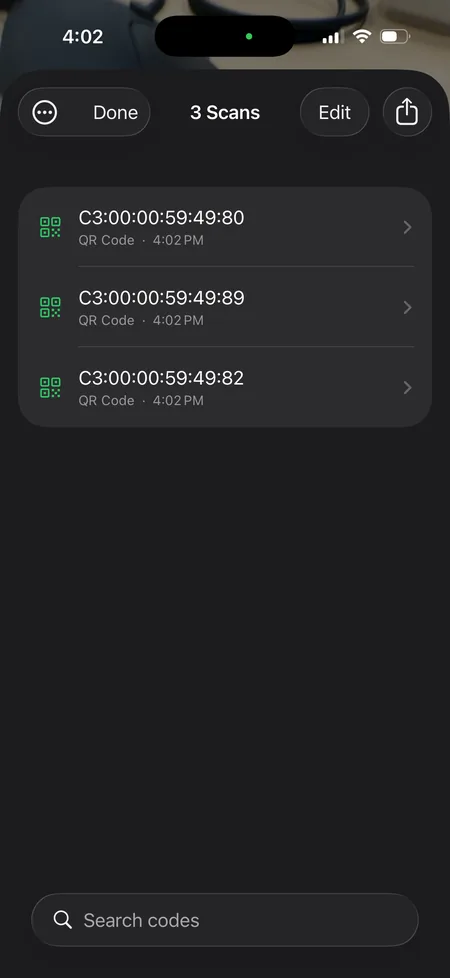
To share only part of a list, open Review list, tap Edit, select the rows you need, and tap Share.
Open the iOS Settings app, find Scan List, and enable Camera. If camera access is already on, close any other app using the camera and reopen Scan List.
Your list is saved inside Scan List on your device. It stays there between launches until you delete rows, delete the whole list, or remove the app.
Open Review list, tap the More button, choose Delete all, and confirm. Share a backup first if you may need the list later.
AirDrop needs the Bluetooth and Wi-Fi hardware of a real Apple device. It appears in the system share sheet on a supported iPhone or iPad.
No. Scanning and storage happen on your device. Data leaves only when you choose to share or export it.
Privacy policy
Scan List is built to work without an account, advertising, analytics, or tracking. Barcode recognition happens on your device, and we do not collect your scans or location.
This policy explains how the Scan List app for iPhone and iPad handles information. “We”, “us”, and “our” refer to Beem, the developer of Scan List.
We do not receive your camera frames, scanned values, saved locations, or preferences. The app has no advertising or cross-app tracking.
Analysed on your device to recognise supported barcodes and QR codes, then immediately discarded. Scan List does not record video or send frames to us.
Barcode values, types, quantities, and scan times are saved inside the app on your device so your list survives relaunches.
Optional and off by default. When you enable it and grant permission, the app can save coordinates, accuracy, and time alongside new scans. This remains on your device unless you export it.
Settings such as duplicate merging, feedback, and location capture are stored locally for the app’s own use.
CSV and text files are created on your device only when you ask to share. You choose the recipient or service in Apple’s share sheet.
Scan List does not send personal information or app activity to Beem. We do not use analytics SDKs, advertising SDKs, tracking technologies, or third-party sign-in. The app does not create a user account or contact our servers.
Required for barcode scanning. You can turn camera access off at any time in iOS Settings, though scanning will no longer work.
Requested only after you turn on Capture location. You can keep using Scan List without it, or revoke permission at any time in iOS Settings.
Scan List sends an export only to the destination you select, such as AirDrop, Mail, Messages, or Files. If the export includes saved coordinates, the CSV clearly includes location columns. The chosen service handles the file under its own privacy policy; Beem does not receive a copy.
Your scan list remains on your device until you delete individual rows, choose Delete all, or remove the app. You can turn optional location capture off at any time. Exported copies are controlled by you and by the destination where you save or send them.
Scan List is a general-purpose utility. Because the app does not send information to us, we do not knowingly collect personal information from children.
We may update this policy if Scan List’s features or legal requirements change. The effective date above will show when the latest version began to apply.
Questions about this policy can be sent to support@beem.im.